Vertica 数据库 License 安装、更新步骤
License的安装、更新,不影响业务运行,不用停服,不用重启数据库。
注意
- License文件(.dat/.xml)一定要保存好,注册到数据库的License不能从数据库再导出为License文件
- License自带在软件中,无需再自行安装;26.1 起社区版(CE)已停供,新安装默认使用 30 天 Trial 许可证(3 节点 / 1TB,需注册),到期后需安装商业许可证
- 升级到 26.1+ 时,使用 CE 许可证的数据库会被锁定;CE 库不能转 Trial,只能迁移到商业许可证(联系 analyticstrials@opentext.com)
一、从MC安装License
1、登陆MC后点击License页面
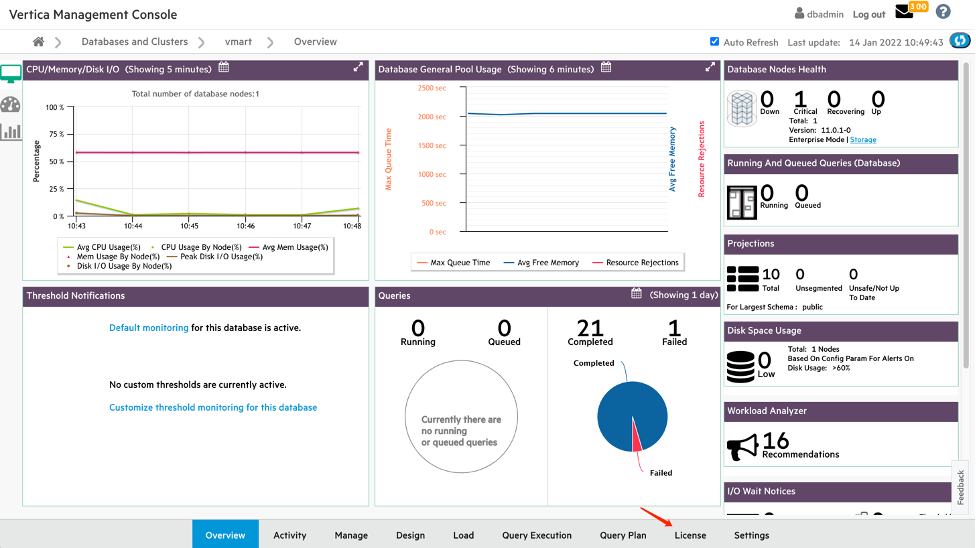
2、点击右上角install new license,安装新的企业版License

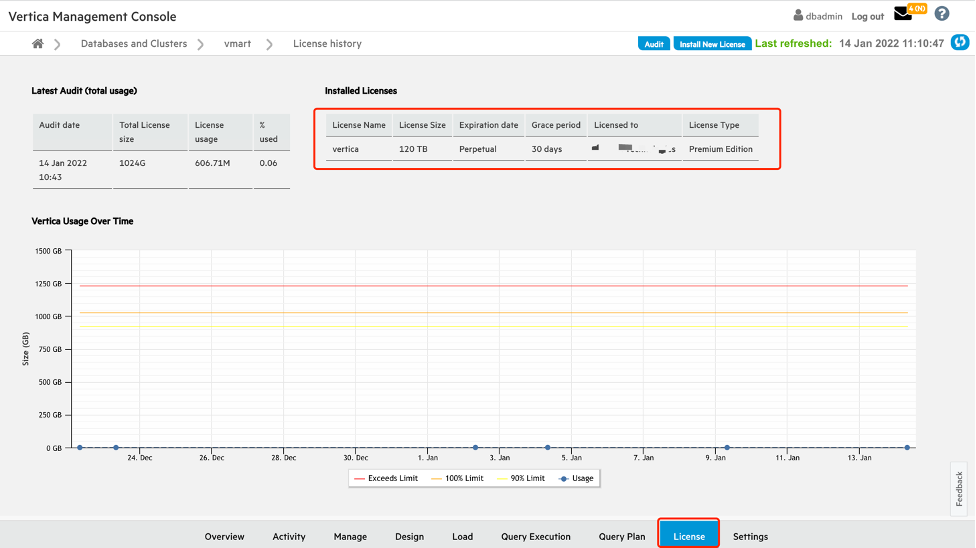
该页面会显示当前的License,如果没有安装过企业版License,缺省使用 Trial 许可证(26.1 前为社区版 CE,26.1 起 CE 已停供)。Trial 许可证支持3个节点、1TB裸数据。
3、点击后会自动跳转到Setting页面
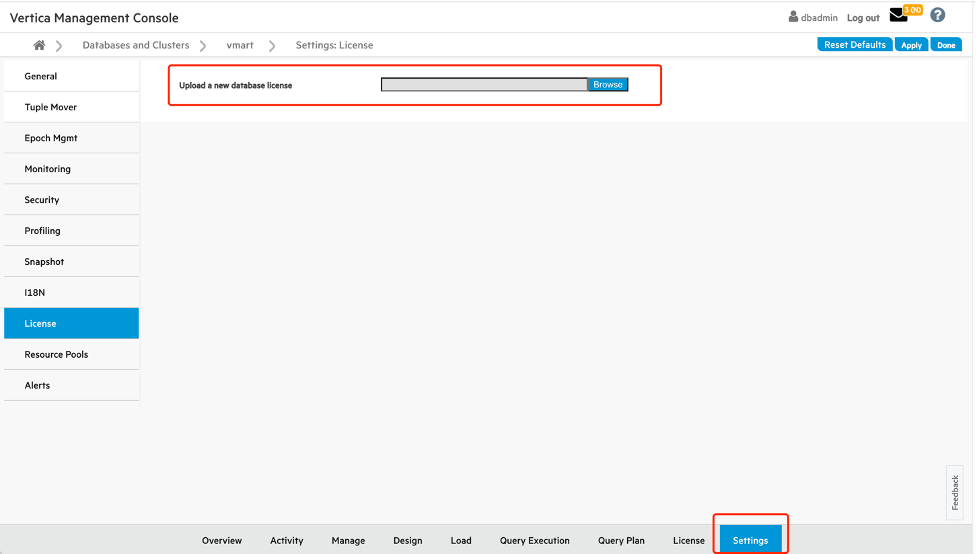
点击Browse,选择License文件上传。
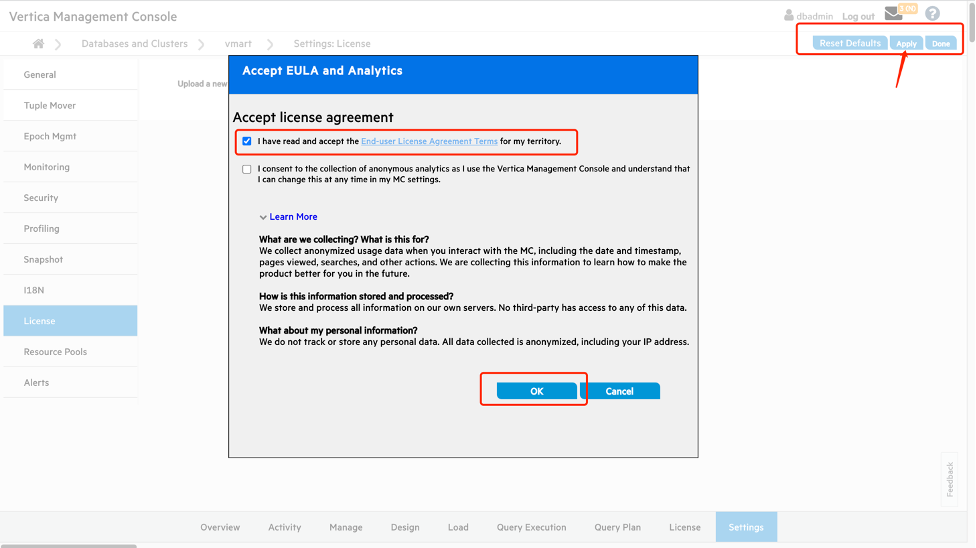
4、点击Apply,勾选最终用户协议,点击OK
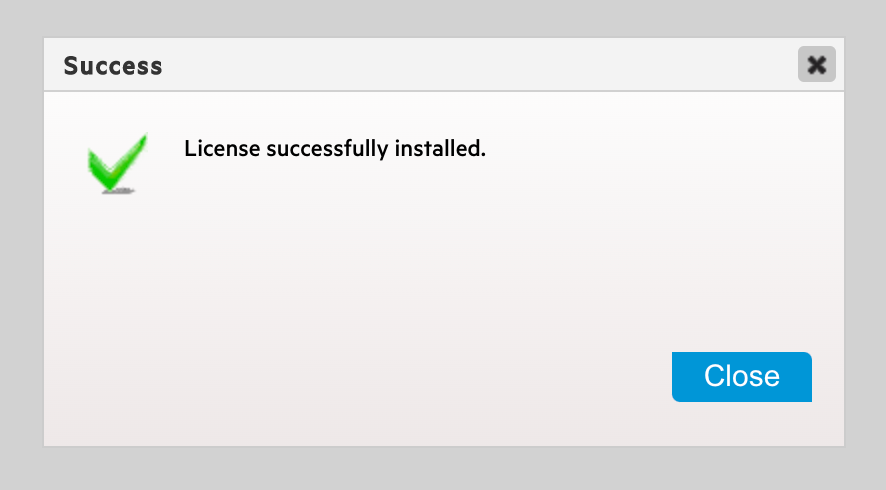
5、更新成功
6、选择License页面,检查安装的License
二、从服务器安装License
1、上传License
使用任意途径上传License到待安装集群任意节点dbadmin用户有权限访问的文件夹

2、使用admintools安装License
在存有新License文件的节点上执行:
命令:admintools -t upgrade_license_key -d <databasename> -p<databasepassword> -l <License路径>
例:admintools -t upgrade_license_key -d vmart -pvertica -l v_license.dat
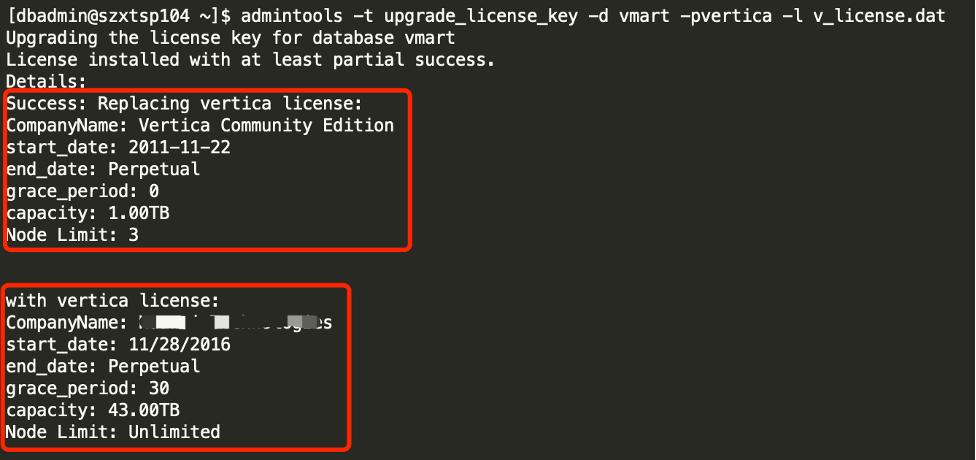
上面是原License,下面是更新后的License。
注意
- License文件有两种格式,一种是旧的.dat格式,一种是新的.xml格式。
- 如果新老两个License都是xml格式文件,且两个文件CompanyName相同,则安装时两个License容量会自动叠加。
- 如果有任意一个License文件是旧的.dat文件,则不能叠加,会被最后安装的License替换。
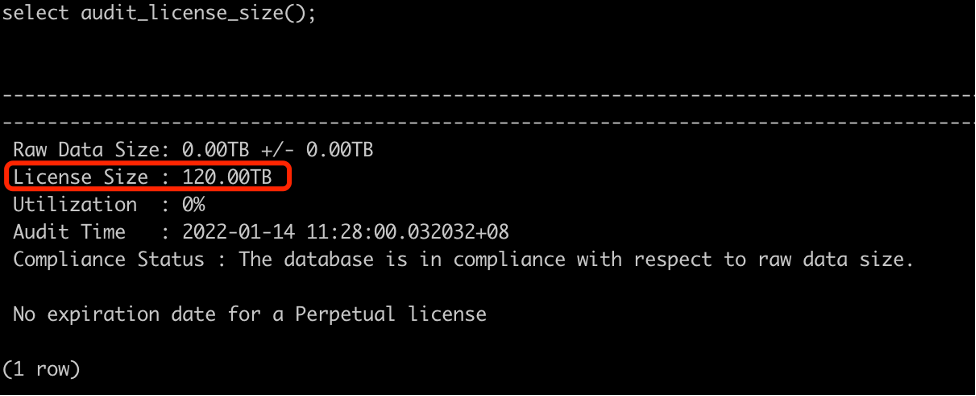
3、检查License
扩展阅读
- Vertica 数据库的启动和关闭 — License 更新后重启数据库
- 节点恢复状态检查 — 节点故障后的恢复检查